
Overview
Importing and Exporting Contacts
Bring your spreadsheet data into Gatsby and export it when you need to. The CSV importer matches emails to prevent duplicates and lets you enrich contacts over time.
Your contacts live in spreadsheets, CRMs, and badge scanners. How do you merge without multiplying?
Import the same contact twice and versions conflict. Manual matching eats hours you don’t have.
Email-Based Matching
Email is your unique ID. Matching emails update records instead of creating copies.
Export Live Data
Download filtered views. Share lists with partners without platform access.
Importing Contacts
Section titled “Importing Contacts”You can import a CSV from three places, and it matters which one you pick:
- Into an event or list — new contacts join both that guest list and your central Contacts database.
- Into Contacts directly — adds contacts to your database without attaching them to any event.
- Reviewing what was already imported — go to Contacts » Imports to see every CSV import your team has run, what it touched, and when.
In Contacts » All Contacts, click Import. From an event or list, use Add Guests » Upload CSV.
Drag your file or click to browse. You can download an example file for formatting guidance.
How to Import a CSV
-
Choose where to import: Contacts » All Contacts, or an event or list.
-
In All Contacts, click Import. On an event or list, choose Add Guests » Upload CSV.
-
Drag your file or click to browse.
-
Map your columns to Gatsby fields.
-
Review the preview and resolve any mapping issues.
-
Confirm and complete the import.
Imports started from an event or list add contacts to that guest list. Imports started from All Contacts add them to the contact database without adding them to an event or list.
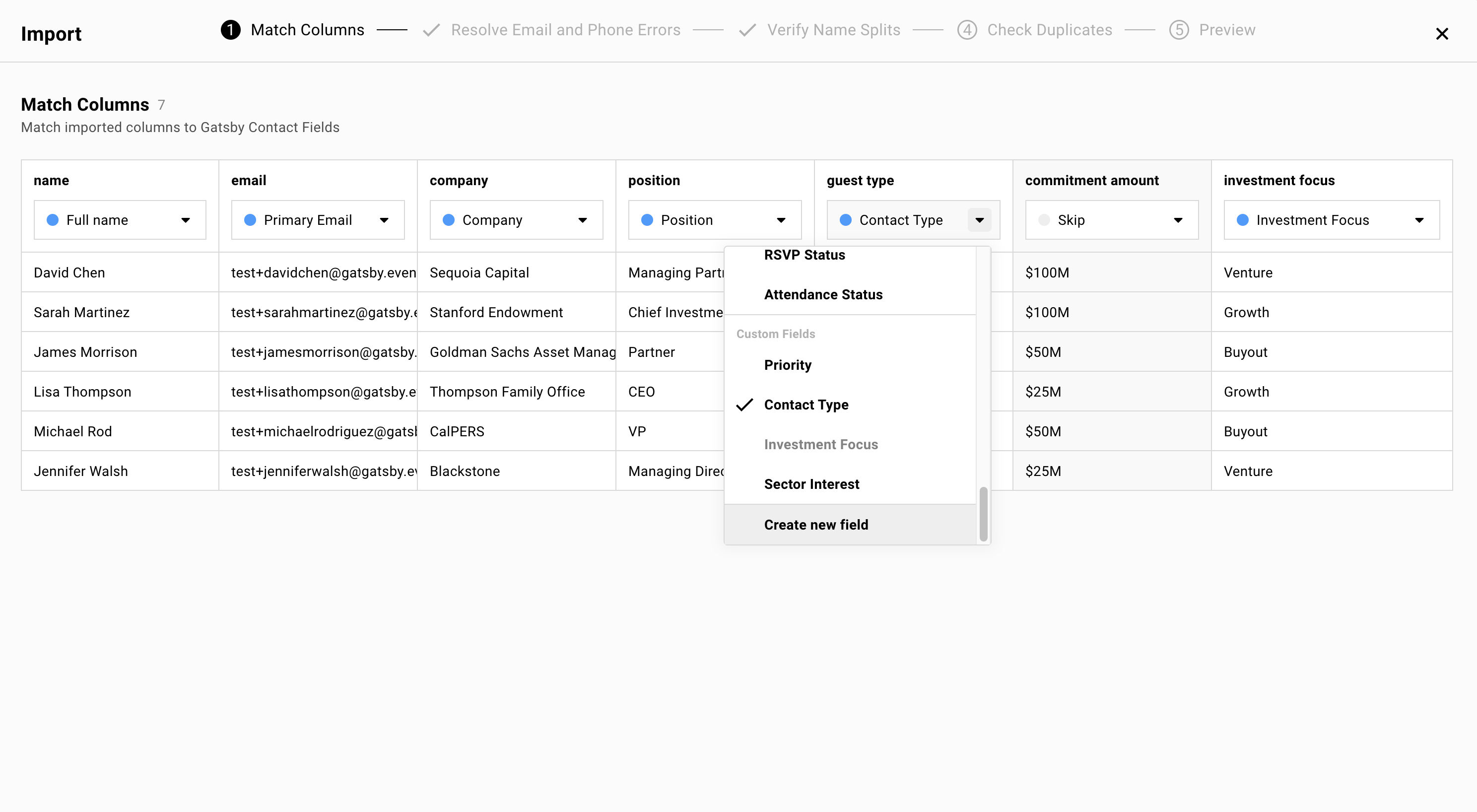
Field Mapping
Section titled “Field Mapping”Gatsby auto-guesses mappings based on your column headers. You can override any mapping via dropdown. Skip columns you do not want to import.
Standard Contact Fields
Map to core contact fields that follow guests across events.
Name
First name and last name as separate columns, or a single full name column. Gatsby splits or combines automatically.
Primary email address plus alternates. CC email for assistants who should receive copies.
Phone
Mobile or office numbers.
Birthday
Date format detected automatically.
Addresses
Mailing addresses for invitations or gifts.
LinkedIn URL
Profile link for reference.
Company Website
Useful for account-based outreach.
Context Notes
Free-form notes about the contact.
Event-Specific Fields
When importing historical event data, map RSVP status and attendance columns.
RSVP Status
The tool prompts you to define what values like “Yes” or “Confirmed” mean. Map them to Gatsby’s status options: Accepted, Declined, Maybe, Waitlist.
Attendance
Same approach. Define what “Attended” or “No Show” means in your spreadsheet.
Plus-Ones Allowed
Import individual plus-one limits per guest. Useful when different guests have different allowances.
Custom Fields
Map to existing custom fields or create new ones on the fly.
Text fields
Free-form text values.
Number fields
Numeric values only.
Multi-select fields
Gatsby auto-creates options from your spreadsheet values. If your column contains “VIP, Speaker, Board Member,” those become selectable options.
Name Handling
Section titled “Name Handling”When three names appear (like “Mary Anne Smith”), the importer asks whether the middle portion belongs to the first or last name. A verification step lets you confirm name splits before the import completes.
Error Detection
Section titled “Error Detection”The importer catches formatting problems before they reach your database: invalid emails, missing addresses, phone numbers that don’t parse.
Fix issues directly in the tool. No need to go back to your spreadsheet and start over.
Duplicate Resolution
Section titled “Duplicate Resolution”When emails match, Gatsby detects the overlap. You decide what happens to conflicting data.
Keep the Gatsby value. Overwrite with the spreadsheet. Or merge for multi-select fields.
If you trust your spreadsheet data, you can apply it globally across all conflicts.
Merge Option for Multi-Select Fields
Some fields accumulate over time, like tags and interest areas.
The merge option adds new values to existing ones rather than replacing. Your contact tagged “VIP” in Gatsby gains the “Speaker” tag from your spreadsheet. They end up with both.
Import Preview and Confirmation
Section titled “Import Preview and Confirmation”The preview screen shows every contact that will be created or updated, along with any skipped columns. A confirmation summary tells you exactly how many new contacts and how many updates you’re about to make.
After importing into an event or list, contacts appear on its guest list and imported columns are enabled in the view. Importing from All Contacts updates the contact database without adding anyone to an event or list.
Reviewing import history
Section titled “Reviewing import history”Open Contacts » Imports to review CSV uploads across your org. Filter by file name to find an upload. The count beside Imports is the total number of imports, even while the list is filtered.
What do the import counts mean?
In Contacts » Imports, each upload shows New Contacts, Updated Contacts, and Missing or Invalid Emails, alongside its upload date.
Missing or Invalid Emails counts imported rows whose email was missing or malformed. Those contacts can still be created or updated, so this count overlaps with the other two columns. It is not a separate count of rejected contacts.
How do I review the contacts in an import?
Click an import’s name to open it. The page shows who uploaded it and how many contacts were created or updated. Click a contact’s name to open their profile.
Use Download CSV to download the original upload. Use the Contacts › Imports breadcrumb to return to the import history.
Where did the Invalid Contacts tab go?
Use Contacts » Imports and its Missing or Invalid Emails column to review uploads with email issues. Open an import to inspect its contacts and correct their contact details. The separate Invalid Contacts tab is no longer available.
How to Export
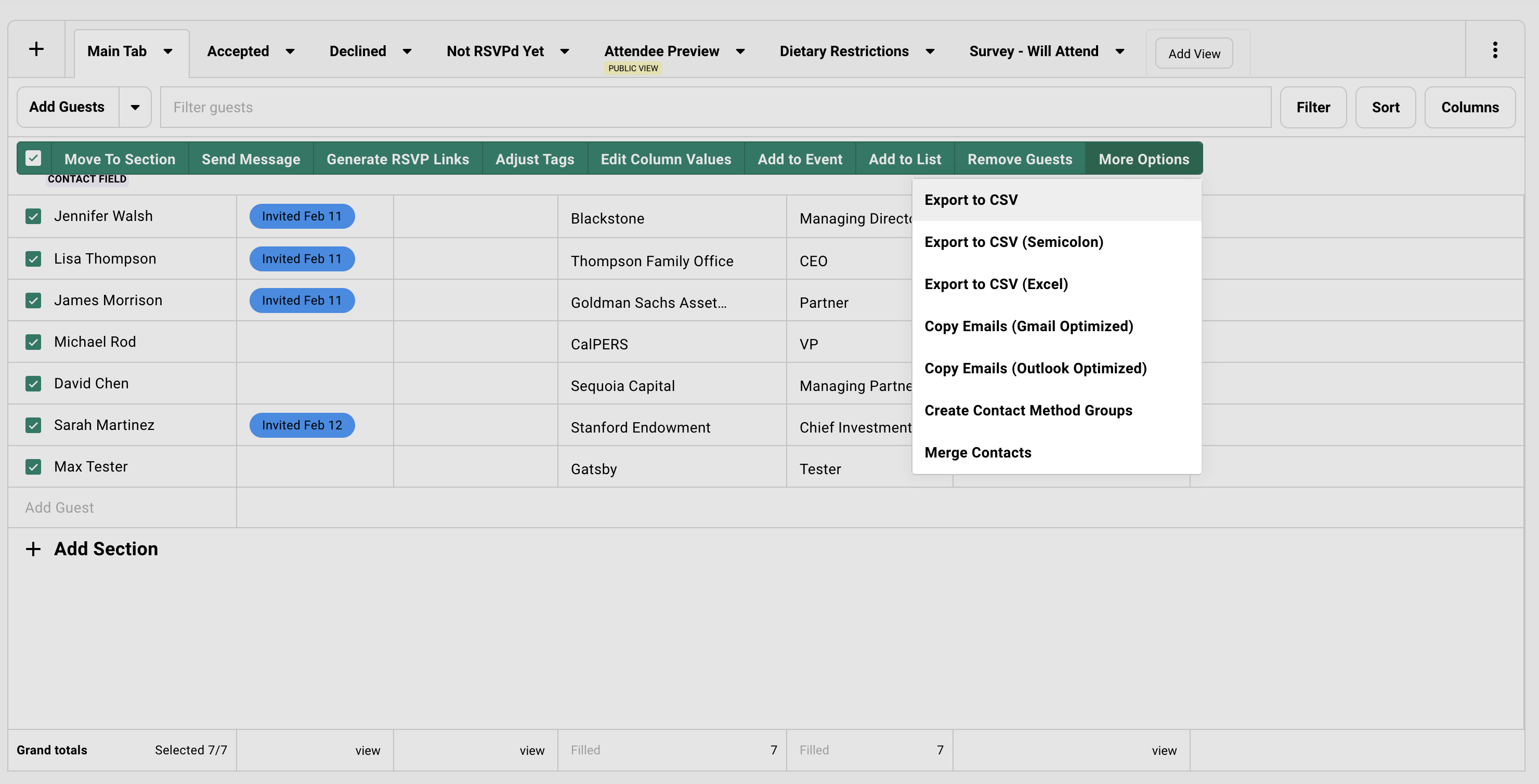
Section titled “How to Export”Select contacts from your Guests tab or Contacts page. The green action bar appears. Click More Options, then Export to CSV.
Choose your format. Open in Excel or your preferred spreadsheet tool.
Export Format Options
Three formats available.
Standard CSV
Comma-separated values. Works with most spreadsheet applications.
Semicolon CSV
For European locales that use comma as the decimal separator.
Excel-Optimized
Handles encoding for special characters and international names.
What Gets Exported
You get what you see.
Visible columns only
Enable additional columns in the Columns drawer before exporting to include them.
Section assignments
Included automatically so you can see how contacts were organized.
Filters apply
If your view is filtered to Accepted guests only, the export contains Accepted guests only.
File upload responses
File Upload survey question responses export as downloadable URLs, not just filenames. This is how you get every headshot, photo, or document guests uploaded during RSVP out in one go: enable the file or image column on your guest list, select all guests, export, and each row carries the attendee’s name alongside a link to their file. Each link is valid for two hours after export, then it stops working. Re-export to get a fresh set of links.
When you start an export with a file or image column enabled, Gatsby shows a confirmation window that explains the time limit before the CSV downloads.
To save the actual files, paste the CSV into ChatGPT, Claude, or Gemini and ask it to download every file into a folder.
Working Non-Destructively
Section titled “Working Non-Destructively”Changes in Gatsby are live. Update a contact note here, and it changes everywhere that contact appears.
Sometimes you need a sandbox.
You can export your guest list and work on scenarios in your spreadsheet: plan seating, curate your invite list, run “what if” exercises. When you’re ready, import only the changes you want to keep.
Your live data stays untouched until you decide.
Common Questions
Section titled “Common Questions” Can I import data from my CRM?
Yes. Export from your CRM as CSV, then import into Gatsby. Email matching prevents duplicates if contacts already exist.
Will importing contacts expose them to other team members?
Contacts are shared across your organization. Team members with contact access can see imported contacts. Use external collaborator permissions if you need event-specific restrictions.
What happens if I import the same spreadsheet twice?
Contacts with matching emails are updated, not duplicated. New columns are added to existing records. This is how you enrich contacts over time.
Can I undo an import?
Go to Contacts and open the Imports tab to see recent imports. Select affected contacts, add them to a “Contacts to Delete” list, then archive from that list.
How do I add tags during import?
Tags cannot be mapped during CSV upload. Import contacts first, then select them and use Adjust Tags from the action bar.
Where can I upload CSVs?
Events, Lists, or directly to your contact database via the Contacts page. All three locations use the same importer.
What data is included in an event export?
Guest list export: Select contacts » More Options » Export to CSV. Exports visible columns with active filters applied.
Available formats:
- Standard CSV (comma-separated)
- Semicolon CSV (for European locales)
- Excel-optimized (handles special characters)
What exports:
- Guest information (names, companies, emails)
- RSVP status, attendance
- Custom fields and survey responses
- File Upload survey responses as downloadable URLs (valid for 2 hours after export)
- Campaign engagement data
- Event history
Use exports for offline work, vendor sharing, or importing to other systems.